 Web Scraper Lite
How to scrape a product list without coding
Product grids, search results and directory listings look like tables, but they are usually built from repeating "cards". Copy and paste turns them into a mess. Here is how to get them into rows and columns without writing a scraper.
Why product lists are harder than tables
A real HTML table has rows and cells built in. A product grid is a stack of separate <div> boxes, each containing a name, a price, a rating and maybe a badge, all positioned with CSS. When you select and copy, the browser gives you one long column of text: name, price, "Add to cart", name, price, "Add to cart"... Excel's From Web and Google Sheets' IMPORTHTML also look only for real tables and lists, so they usually miss these grids entirely.
Your options without coding:
- Manual copy and clean-up: fine for 10 items, painful for 100.
- Rule-based scraper extensions: you build a "sitemap" or recipe by clicking on elements to define each field. Powerful for repeated jobs, but it takes some time to learn.
- Auto-detecting table extractors: they recognise the repeating pattern and turn each card into a row. Fastest for a one-off export.
Step by step with Web Scraper Lite
- Open the listing page and set it up. Apply the filters and sort order you want, and choose the largest "items per page" setting the site offers.
- Let everything load. If the site loads more items as you scroll, scroll down until the items you need are on the page.
- Click the Web Scraper Lite icon. Under Data sources, pick the entry for the card list. The list is outlined on the page so you can confirm it is the right one.
- Review the columns. Each text field in the cards becomes a column. Untick columns you don't need and turn on Remove duplicates.
- Export CSV or Copy. Open the CSV in Excel, or paste the copied data into Google Sheets.
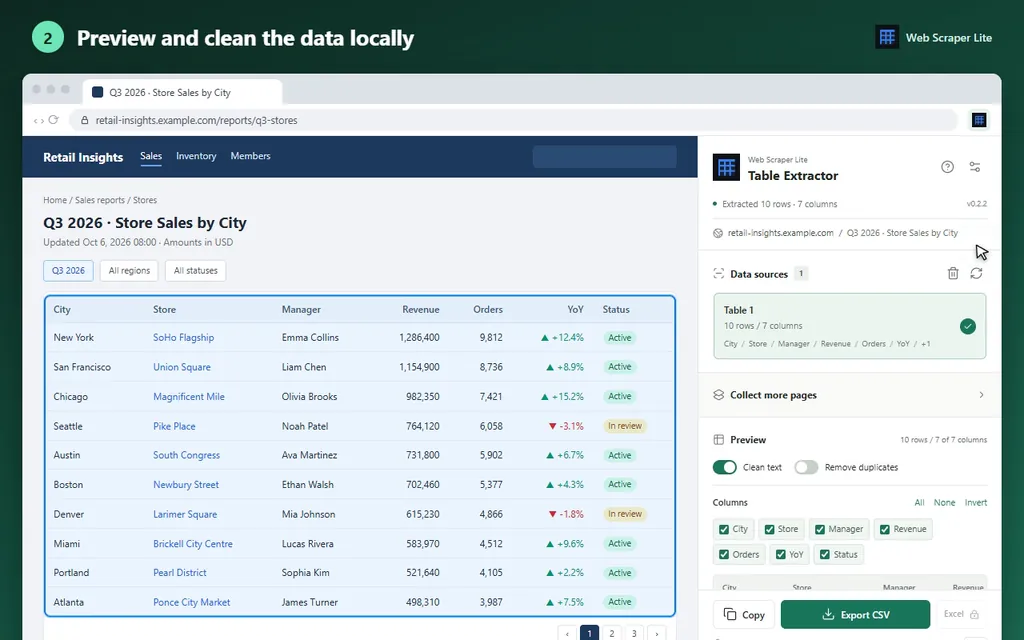
The extension reads the page as it is displayed in your browser, so it works on pages you are signed in to and on lists that are drawn with JavaScript. Nothing is uploaded; parsing happens locally.
If the list isn't detected
- Wait until the page has fully loaded, then use the refresh (rescan) button next to Data sources.
- Make sure the items are actually on the page. Lazy-loaded items that you haven't scrolled to yet don't exist in the page yet.
- If a site still isn't recognised, the developer welcomes the page URL by email (address in the footer); detection rules are improved from real examples.
More than one page of results
If the results are split into numbered pages, use Collect more pages in the side panel. The extension clicks "Next" (or the page numbers) and adds each page's rows to the same table, up to 5 pages per run on the free plan. Full details are in how to export paginated tables. Lists that load more items as you scroll, or with a "Load more" button, are not collected automatically; scroll or click "Load more" yourself until the items are visible, then export.
Clean the data in your spreadsheet
Product text often needs a little tidying after export:
- Turn "$1,299.00" into a number. In Excel or Google Sheets:
=VALUE(SUBSTITUTE(SUBSTITUTE(B2,"$",""),",","")). In Excel you can also select the column and use Data > Text to Columns. - Split "4.5 out of 5 stars".
=VALUE(LEFT(C2, FIND(" ", C2) - 1))keeps the first number. - Remove duplicates. Sponsored items often appear twice. Turn on Remove duplicates before exporting, or use Data > Remove Duplicates in Excel or Data > Data cleanup > Remove duplicates in Google Sheets.
- Prices in another currency or language? The CSV is UTF-8 with BOM, so symbols like € or ¥ and non-English names open correctly. If you use another tool and see garbled text, see fixing garbled CSV characters.
Free, no account, and nothing leaves your browser.
Add Web Scraper Lite to Chrome – freeWhen you need a real scraper instead
A point-and-export tool is meant for the page in front of you. Choose something else when you need to:
- collect thousands of pages or many different URLs on a schedule (use a rule-based scraper, a scraping API, or a script with a library such as Python's Beautiful Soup);
- open every product page to collect details that aren't shown in the list;
- monitor prices automatically every day.
Scrape responsibly
Exporting what you can already see in your browser is generally low-impact, but check the site's terms of use, don't republish content you don't have rights to, and be careful with personal data such as names and contact details in directories, which privacy laws may cover. When collecting several pages, keep a delay between pages so you don't load the site heavily.
FAQ
Can I scrape a website without coding?
Yes. For one-off exports, an auto-detecting extension such as Web Scraper Lite turns tables and repeating card lists into CSV with a few clicks. For recurring, large jobs, use a rule-based scraper where you define fields by clicking on the page.
Why does copying a product grid give me one long column?
Product grids are built from separate div boxes rather than table cells, so the browser copies them as plain lines of text. A table extractor groups each card's fields into one row.
Does it work on Amazon, eBay or other big sites?
It works on the page as your browser shows it, and big shops change their layouts often, so results vary by page. Check the preview before exporting; if a list isn't detected, the page URL helps the developer improve detection.
Can it collect infinite-scroll lists?
Not automatically. Scroll until the items you need have loaded, then export what is on the page.