 Web Scraper Lite
How to export a paginated table across pages
Search results, order lists and admin tables usually show 10 to 50 rows per page. Copying each page by hand is slow and error-prone. Here are four ways to get all the pages into one spreadsheet, from no tools at all to fully automatic.
First, try to avoid pagination
Many tables have a "rows per page" or "show" selector at the bottom (10 / 25 / 50 / 100). Setting it to the highest value can turn ten pages into two. Some sites also have their own "Export" or "Download CSV" button for the full result set, which is always the most complete option when it exists.
Method 1: Page numbers in the URL (IMPORTHTML or Power Query)
Go to page 2 and look at the address bar. If you see something like ?page=2 or &p=2, each page has its own address and you can import them with formulas. This only works for public pages whose table is a real HTML table in the page source.
Google Sheets
Stack several IMPORTHTML calls vertically with curly braces and semicolons:
={IMPORTHTML("https://example.com/list?page=1","table",1);
  QUERY(IMPORTHTML("https://example.com/list?page=2","table",1),"select * offset 1",0);
  QUERY(IMPORTHTML("https://example.com/list?page=3","table",1),"select * offset 1",0)}
The QUERY(… "select * offset 1", 0) wrapper drops the repeated header row from pages 2 and 3. All pages must have the same number of columns, otherwise Sheets shows an array error. See the IMPORTHTML guide for the limits (no login pages, no JavaScript tables).
Excel
Use Data > From Web once per page URL and then Data > Get Data > Combine Queries > Append to merge the queries. Power Query users can also turn the first query into a function that takes a page number and invoke it over a list of numbers, but that is beyond a quick job.
Method 2: Copy each page manually
For two or three pages, copying and pasting each page under the previous one is honest work. Delete the repeated header rows afterwards and watch for pages where the columns shifted. Beyond a few pages it becomes tedious and mistakes creep in.
Method 3: Let an extension click "Next" for you
When the page number isn't in the URL (common in admin panels and single-page apps), or the page requires a login, a browser extension can click through the pages in your own browser and merge the rows.
- Open page 1 of the table. Set the site's rows-per-page option to its maximum first; fewer pages means a faster, more reliable run.
- Click the Web Scraper Lite icon and select the table. Check the preview to make sure it's the right table.
- Open Collect more pages. The extension shows the pager it detected, such as a Next button or numbered pages. If it didn't find one, use Pick next button and click the site's Next button.
- Set the delay and start. The delay between pages can be set from 0.5 to 10 seconds. Use a longer delay on slow sites so each page has time to load.
- Export the merged table. Rows from every page are added to one table. Turn on Remove duplicates, then Export CSV or Copy.
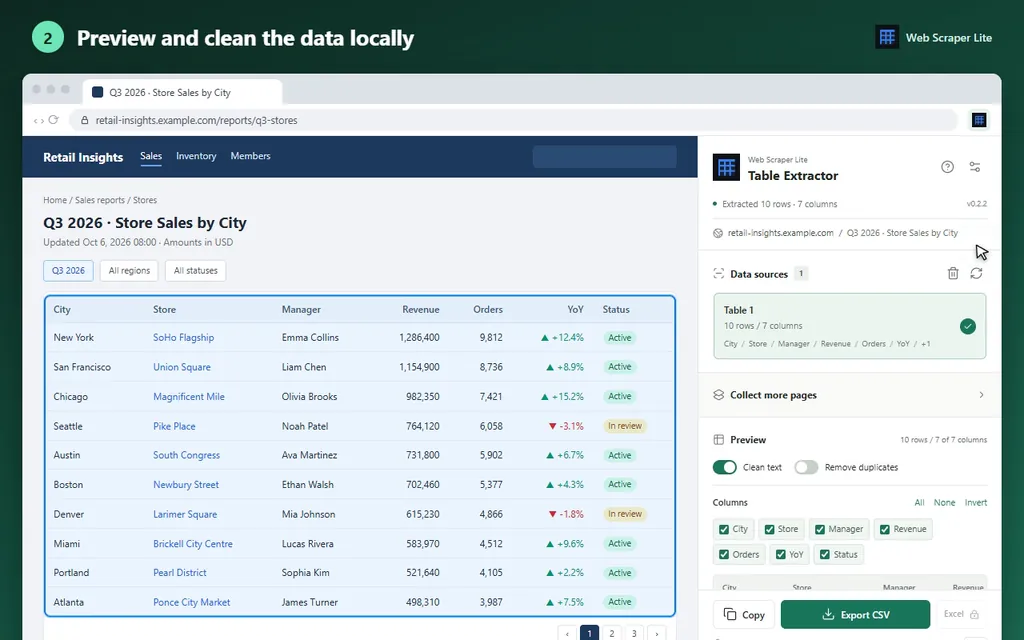
What's recognised: "Next" buttons, numbered page links, and the pagination components of common admin frameworks (Element UI, Ant Design and iView). The free plan collects up to 5 pages per run, up to 100,000 rows.
More than 5 pages on the free plan
Run the collection for pages 1–5 and export. Then go to page 6 on the site, select the table again, collect pages 6–10, and export again. Combine the files in your spreadsheet (paste one under the other and delete the extra header row), or with Remove duplicates turned on if pages overlap. Unlimited pages are planned for a future Pro version.
Free, no account, and nothing leaves your browser.
Add Web Scraper Lite to Chrome – freeWhat about infinite scroll and "Load more"?
Lists that add items as you scroll, or when you click "Load more", aren't pages in this sense, and Web Scraper Lite doesn't collect them automatically yet. A workaround that often works: scroll (or click "Load more") until all the items you need are showing, then export once. The extension reads everything that is currently on the page. Very long lists in some apps are virtualized, meaning only the visible rows exist at any moment; for those, sort or filter to narrow the result first.
Tips for reliable multi-page exports
- Use a sensible delay. If rows are missing or a page appears twice, the next page hadn't finished loading. Increase the delay and run again.
- Let it run undisturbed. Avoid clicking around on the page or navigating the tab while pages are being collected.
- Check the row count. If the site says "Showing 1–50 of 230", you know what to expect from five pages of 50.
- Be considerate. Keep delays reasonable, don't collect more than you need, and respect the site's terms.
Next steps: open the CSV in Excel or clean up product-list data.
FAQ
How do I scrape a table from multiple pages into Excel?
If the page number is in the URL, import each page with Data > From Web and append the queries. Otherwise, use an extension such as Web Scraper Lite that clicks Next and merges the rows, then export one CSV.
How many pages can Web Scraper Lite collect?
Up to 5 pages per run on the free plan, and up to 100,000 rows. You can run it again starting from page 6 and combine the files.
Does it work if the page number isn't in the URL?
Yes. It clicks the site's Next button or page numbers inside your browser, so it doesn't depend on the URL. If the pager isn't detected, use Pick next button.
Why are some rows missing or duplicated?
The next page probably hadn't finished loading before it was read. Increase the delay between pages and turn on Remove duplicates.