 Web Scraper Lite
How to export a table from a website to Excel
There are three practical ways to get a table off a webpage and into Excel. Which one works best depends on how the page is built, whether you need to sign in to see it, and whether you want the data to refresh later.
Quick answer: which method to use
| Method | Best for | Main drawback |
|---|---|---|
| Copy and paste | One small, simple table | Columns often shift on merged cells, div layouts and data grids |
| Excel Data > From Web | Public pages you want to refresh later | Excel fetches the page itself, so pages behind a normal web sign-in usually fail |
| Browser extension (Web Scraper Lite) | Logged-in pages, data grids, card lists, several pages | Chrome only; produces CSV rather than a live connection |
Method 1: Copy and paste
This needs no tools and is fine for a short, plain table.
- On the webpage, press and hold on the first header cell, then drag to the last cell of the table so the whole table is highlighted.
- Press
Ctrl+C(Cmd+Con a Mac). - In Excel, click cell A1 and press
Ctrl+V. - If links, colours or fonts come along, click the Paste Options button that appears and choose Match Destination Formatting or Keep Text Only.
Pros: instant, nothing to install, works on any page you can see.
Cons: selecting exactly the table and nothing else is fiddly on long pages. Many modern sites build tables from <div> elements instead of a real HTML table, so the paste lands in one column or with cells out of line. Data grids in admin panels often only render the rows currently on screen (virtualized), so you copy 30 rows of a 500-row table. Tables split across pages have to be copied page by page.
Method 2: Excel's Data > From Web (Power Query)
Excel for Windows can download a page and list the tables it finds. This is the best built-in option when the page is public and you want to refresh the numbers later. The steps below follow Microsoft's documentation for the Web connector.
- Copy the page address from your browser's address bar.
- In Excel, go to the Data tab and choose From Web. In some versions it is under Get Data > From Other Sources > From Web.
- Paste the URL and select OK. If Excel asks how to connect, Anonymous is the right choice for a public page.
- The Navigator lists the tables it detected (Table 1, Table 2 and so on, plus "suggested tables"). Click each one to preview it, or switch to Web View to see which part of the page it is.
- Select the table and choose Load to put it on a new sheet, or Transform Data to clean it in the Power Query Editor first.
- Later, choose Data > Refresh All to pull the latest version of the table.
If the Navigator finds nothing useful, Add Table Using Examples lets you type a couple of sample values (for example two product names and prices) and Power Query tries to pick out matching data from the page.
Pros: built into Excel, refreshable, and you can clean the data with Power Query steps that are re-applied on every refresh.
Cons: Excel requests the page on its own, not through your browser session, so pages that you reach by signing in through a normal website login usually return a login page or nothing. Results on pages that build their tables with JavaScript can be hit or miss. Microsoft notes that the Web connector needs the WebView2 component on Windows, and on a Mac the From Web option is only offered in recent Microsoft 365 builds, so check whether you see it under Data > Get Data. It is also more steps than most one-off jobs need.
Method 3: Use a table-extractor extension
A browser extension reads the page you already have open, after it has loaded and after you have signed in. That makes it the most reliable option for dashboards, admin panels, search results and other pages where the first two methods break. Web Scraper Lite is a free Chrome extension built for exactly this job. It needs no account and processes everything locally in the browser.
- Open the page that shows the table. Sign in first if the page needs it, and apply any filters you want.
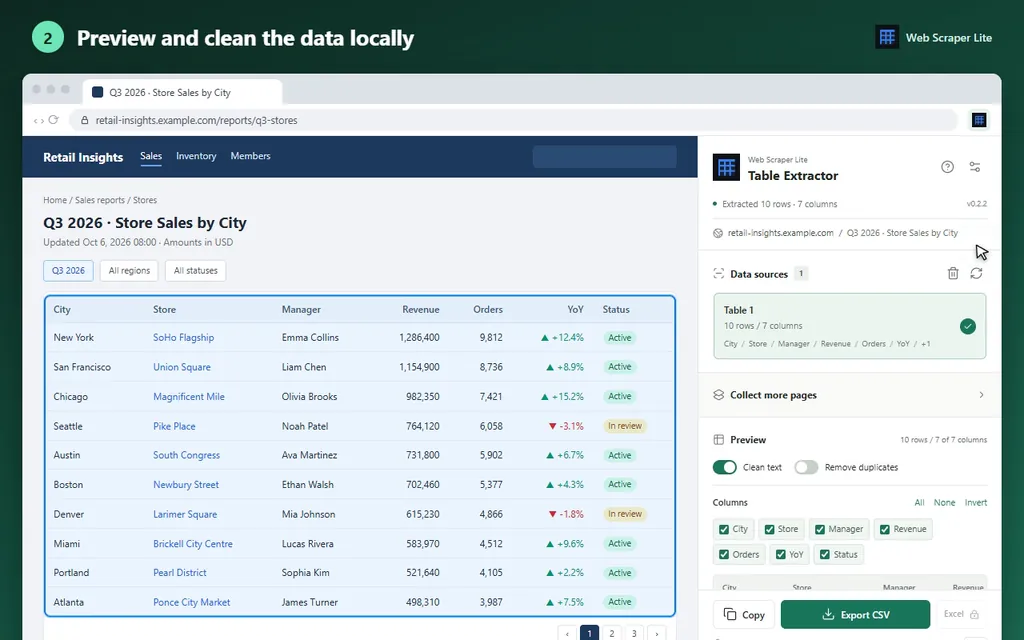
- Click the Web Scraper Lite icon. The side panel opens and lists every table and list it found under Data sources. The selected one is outlined on the page.
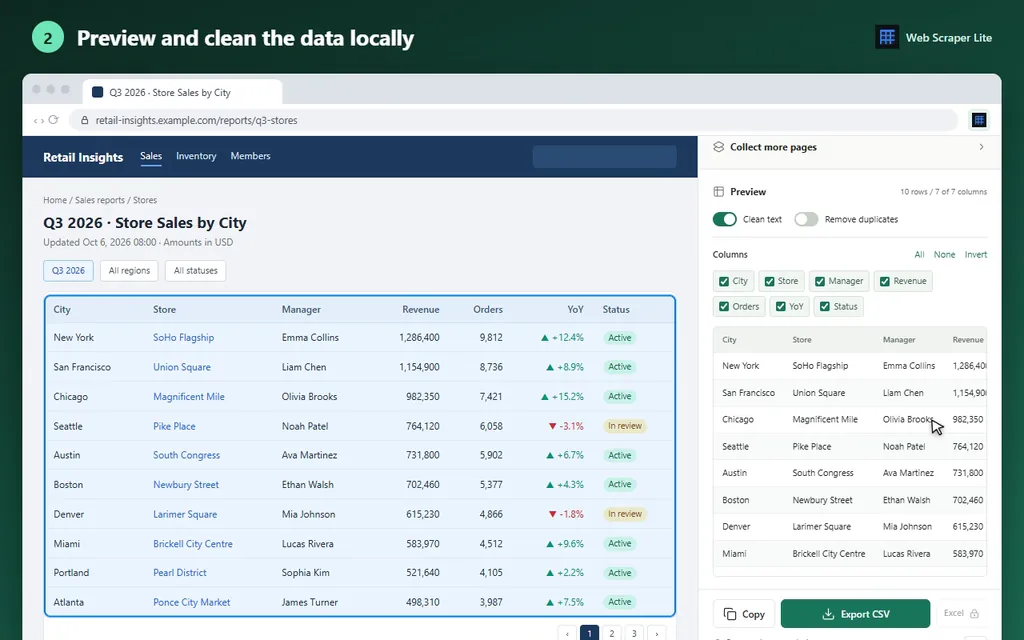
- Check the preview. Leave Clean text on, turn on Remove duplicates if needed, and untick any columns you don't want.
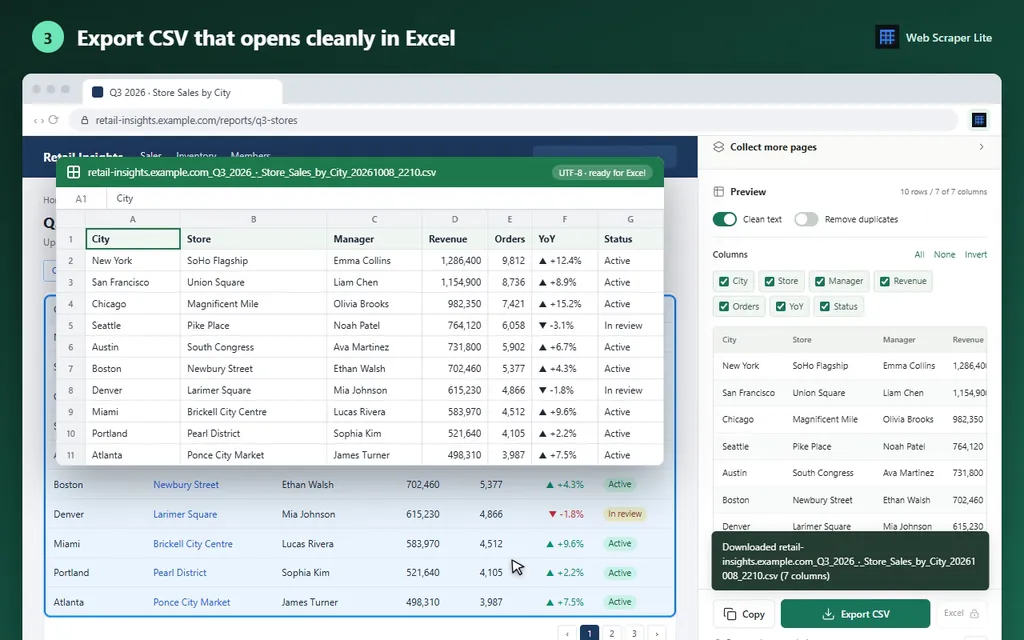
- Click Export CSV. The CSV downloads as UTF-8 with BOM. Double-click it to open it in Excel, then use File > Save As > Excel Workbook (.xlsx) if you want to keep it as a workbook.
What it detects automatically: standard HTML tables (including merged cells), data grids and virtualized tables used by admin dashboards, repeating card lists such as product grids, column-by-column div tables such as size charts, and tables inside iframes. It can also click through up to 5 pages per run on the free plan (see exporting paginated tables).
Pros: no configuration, works on logged-in and JavaScript-rendered pages, keeps columns aligned, CSV opens in Excel without garbled characters because it is saved as UTF-8 with BOM.
Cons: Chrome only, exports CSV (not .xlsx) for now, does not keep a live link to the page, does not collect infinite-scroll lists, and cannot run on chrome:// pages, the Chrome Web Store or PDF files.
Free, no account, and nothing leaves your browser.
Add Web Scraper Lite to Chrome – freeAfter the data is in Excel
- Keep it as a workbook. A CSV holds values only. Use File > Save As and pick Excel Workbook (*.xlsx) before you add formatting or formulas.
- Leading zeros disappear? When Excel opens a CSV directly it converts columns automatically, so product codes like
00123become123. Import the file with Data > From Text/CSV instead, choose Transform Data, and set that column's type to Text. - Strange characters such as é or 鍩庡競? That is an encoding problem, not broken data. See how to fix garbled CSV characters in Excel.
- Using Google Sheets instead? See how to import a web table into Google Sheets.
FAQ
Can Excel pull a table from a website automatically?
Yes. Data > From Web creates a Power Query connection to the page. Choose Data > Refresh All to update it. This works for public pages; pages behind a normal website login usually do not work.
Why does pasting a web table put everything in one column?
The page probably builds its table from div elements rather than an HTML table, so there are no cell boundaries for Excel to keep. A table extractor that understands div layouts and data grids keeps the columns.
Can I export a table from a page that requires a login?
Copy and paste and a browser extension both work, because they use the page you are already signed in to. Excel's From Web fetches the page separately and usually gets the login page instead.
Does Web Scraper Lite export .xlsx files?
Not yet. It exports CSV in UTF-8 with BOM, which Excel opens directly. Save it as .xlsx from Excel if you need a workbook.