 Web Scraper Lite
How to import a table from a website into Google Sheets
Google Sheets has a built-in formula, IMPORTHTML, that pulls a table straight from a public webpage and keeps it updated. It is excellent when it works. This guide shows how to use it, how to fix the common errors, and what to do for pages it can't read.
The IMPORTHTML formula
According to Google's documentation the syntax is:
=IMPORTHTML(url, query, index)url: the page address including the protocol (https://), in quotes or as a reference to a cell that contains it.query:"table"for an HTML table or"list"for a bulleted or numbered list.index: which table or list on the page, counting from 1 in the order they appear in the page's HTML. Tables and lists are counted separately, so a page can have both a table 1 and a list 1.
Step by step
- Copy the page URL. Use the full address including https://.
- Type the formula in an empty cell. For example
=IMPORTHTML("https://en.wikipedia.org/wiki/Demographics_of_India", "table", 4). The table appears and spills into the cells below and to the right. - Find the right index. If you got the wrong table, change the last number (1, 2, 3...) until you see the one you want.
- Keep only the columns you need. Wrap the formula in QUERY or INDEX, as shown below.
Google's own sample formula is =IMPORTHTML("http://en.wikipedia.org/wiki/Demographics_of_India","table",4). You can also keep the inputs in cells and write =IMPORTHTML(A2, B2, C2), which makes it easy to try different indexes.
Semicolons or commas? In locales that use a comma as the decimal separator (for example Germany or Brazil), Google Sheets separates formula arguments with semicolons: =IMPORTHTML("https://…"; "table"; 1). Your spreadsheet locale is under File > Settings.
Finding the right index
The index counts every <table> in the page source, including ones used for layout or hidden on screen, so "the second table I can see" is not always index 2. Put the index in a cell, reference it in the formula, and step through 1, 2, 3 until the preview matches. On Wikipedia the infobox at the top is usually a table too.
Picking columns and rows
IMPORTHTML returns the whole table. To keep only part of it:
- One column:
=INDEX(IMPORTHTML(A1, "table", 2), 0, 3)returns column 3. - Several columns:
=QUERY(IMPORTHTML(A1, "table", 2), "select Col1, Col3, Col5", 1). The last argument tells QUERY there is one header row. - Filter rows:
=QUERY(IMPORTHTML(A1, "table", 2), "select * where Col4 > 1000", 1).
How often it refreshes
Google says IMPORTHTML, IMPORTDATA and IMPORTXML check for updates about every hour while the spreadsheet is open. Reloading the browser tab does not force a refresh, but deleting and re-entering the formula does. If you need a fixed snapshot instead of a live import, select the range, copy it and use Edit > Paste special > Values only.
What IMPORTHTML can't do
IMPORTHTML runs on Google's servers, not in your browser. That explains nearly all of its limits:
- Pages that need a login. Google's servers are not signed in to your accounts, so admin panels, dashboards, intranet pages and most paid sites return an error or the login page.
- Tables built with JavaScript. IMPORTHTML reads the HTML the server sends. Data grids that load their rows with JavaScript after the page opens, which is common in modern web apps, come back empty or missing.
- Things that aren't tables or lists. Product grids, search results and size charts made of
<div>elements are invisible to"table"and"list". IMPORTXML with an XPath expression can sometimes reach them, but that takes some HTML knowledge. - Sites that block automated requests. Some sites refuse requests from Google's servers, giving "Could not fetch url".
- Usage limits. Google applies limits to import functions across all spreadsheets you create. Too many can lead to "Loading data may take a while because of the large number of requests".
- One page at a time. A table split across pages needs one formula per page, which only works if the page number appears in the URL. See exporting paginated tables.
The alternative: copy it from your browser
When IMPORTHTML fails, copy the table from the page you already have open. Plain select-and-copy works for simple tables but often merges columns. A table extractor keeps the structure:
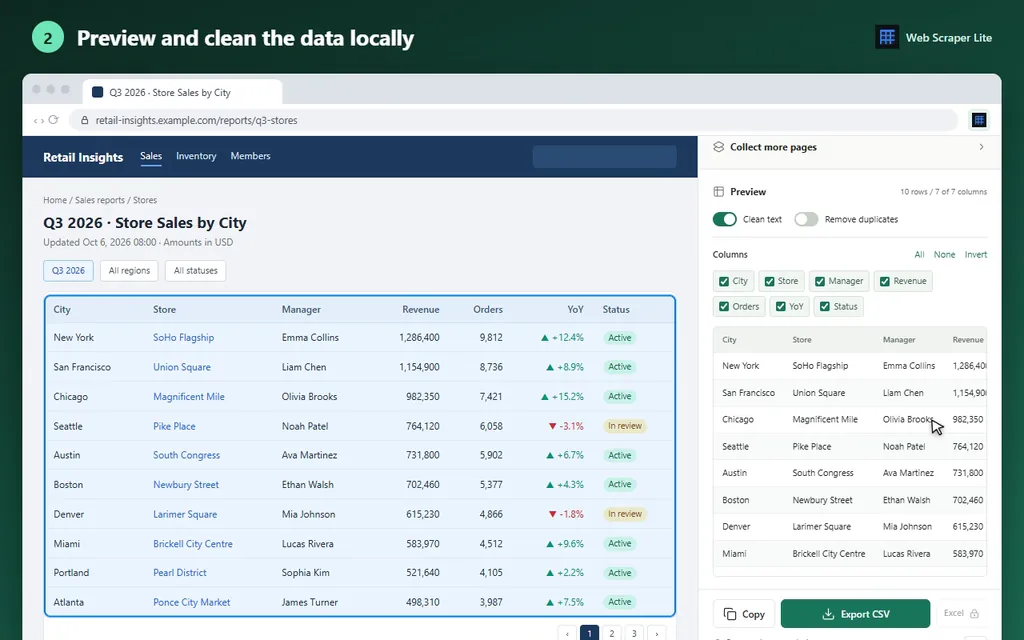
- Open the page in Chrome (signed in if needed) and click the Web Scraper Lite icon.
- Pick the table or list under Data sources. It is outlined on the page so you can check it is the right one.
- Click Copy. The data goes to the clipboard as tab-separated values.
- In Google Sheets, click cell A1 and press
Ctrl+V(Cmd+Von Mac). Every value lands in its own cell.
For large tables, click Export CSV instead and import it with File > Import > Upload. Choose an Import location (for example "Insert new sheet(s)"), leave Separator type on "Detect automatically", and click Import data.
Free, no account, and nothing leaves your browser.
Add Web Scraper Lite to Chrome – freeIMPORTHTML vs copying from the browser
| IMPORTHTML | Web Scraper Lite + paste | |
|---|---|---|
| Updates automatically | Yes, about hourly | No, a snapshot |
| Logged-in pages | No | Yes |
| JavaScript data grids | No | Yes |
| Div-based lists and cards | No (IMPORTXML sometimes) | Yes |
| Multiple pages | One formula per page URL | Up to 5 pages per run (free) |
| Works outside Chrome | Yes, any browser | Chrome only |
Rule of thumb: use IMPORTHTML for public, static tables you want to keep fresh, such as Wikipedia lists or published statistics. Use a browser-side tool for everything else. Exporting to Excel instead? See how to export a website table to Excel.
FAQ
Why does IMPORTHTML return #N/A or "Imported content is empty"?
Usually the index points at the wrong table, the table is built with JavaScript, or the page needs a login. Try other index numbers first; if none work, the data is not in the page's HTML and you will need to copy it from your browser.
Can IMPORTHTML import from a page that requires a login?
No. The formula is executed on Google's servers, which are not signed in to your accounts.
How do I force IMPORTHTML to refresh?
Delete the formula and enter it again, or change one of its inputs. Reloading the browser tab does not trigger a refresh.
Can I paste a web table into Google Sheets without merging columns?
Yes. Copy it as tab-separated values, which is what Web Scraper Lite's Copy button does, and paste into a single cell. Sheets splits the values into columns.