 Web Scraper Lite
CSV shows garbled characters in Excel? How to fix it
You open a CSV and see Café instead of Café, or 鍩庡競 instead of 城市. The data is fine. Excel simply read the file with the wrong text encoding. Here is why it happens and how to fix it without retyping anything.
Why Excel garbles CSV files
A CSV file is plain text. It has no place to say which character encoding it uses, so the program opening it has to guess. Most web apps and scripts write CSV in UTF-8, which can store every language. When you double-click a CSV, Excel for Windows does not assume UTF-8. Unless the file tells it otherwise, it reads the bytes using your system's legacy code page, such as Windows-1252 on English Windows or GBK on Simplified Chinese Windows.
The same bytes read the wrong way produce typical patterns:
| Original (UTF-8) | Read as Windows-1252 | Read as GBK |
|---|---|---|
| Café | Café | Caf茅 |
| Größe | Größe | Gr枚脽e |
| 城市 | 城市 | 鍩庡競 |
The way a file tells Excel "I am UTF-8" is a byte order mark (BOM): three invisible bytes (EF BB BF) at the very start. Microsoft's own support article says a UTF-8 CSV opens normally if it was saved with a BOM, and otherwise should be opened through Get Data from Text/CSV. That gives you the fixes below.
Before you start: if you already opened the file and saw garbled text, close it without saving. Saving from Excel at that point writes the garbled characters into the file for good.
Fix 1: Import with Data > From Text/CSV (Excel for Windows)
This works in Excel for Microsoft 365, 2024, 2021, 2019 and 2016 and does not change the original file.
- Open a blank workbook. Don't double-click the CSV. Start Excel and create a new, empty workbook.
- Choose Data > From Text/CSV. It is in the Get & Transform Data group. In some versions use Data > Get Data > From File > From Text/CSV.
- Pick the CSV file and click Import. A preview window opens.
- Set File Origin to 65001: Unicode (UTF-8). The preview updates immediately, and the text should now read correctly. Check that Delimiter is Comma.
- Click Load. The data goes into a new sheet. Use Transform Data instead if you want to set column types first, for example to keep leading zeros.
Prefer the old wizard? Go to File > Options > Data, tick From Text (Legacy) under "Show legacy data import wizards", then use Data > Get Data > Legacy Wizards > From Text (Legacy). In step 1 of the Text Import Wizard, set File origin to 65001 : Unicode (UTF-8), choose Delimited, and in step 2 tick Comma. Step 3 lets you mark a column as Text to keep leading zeros.
Fix 2: Add a BOM so double-clicking works
If you or a colleague will open the file by double-clicking, add the BOM once:
- Right-click the CSV and choose Open with > Notepad. Notepad reads UTF-8 correctly, so the text should look right here.
- Choose File > Save as.
- In the Encoding drop-down at the bottom, choose UTF-8 with BOM and save (keep the .csv name).
- Double-click the file. Excel now detects UTF-8.
Recent versions of Windows 10 and Windows 11 Notepad offer the "UTF-8 with BOM" option. In other editors such as VS Code the setting is usually called "Save with Encoding" or similar.
Fix 3: Excel for Mac and WPS Office
Excel for Mac
In Microsoft 365 for Mac use Data > Get Data (Power Query) > Text/CSV and check the encoding in the preview. On versions with the classic importer, use File > Import, choose CSV file, and in the Text Import Wizard set File origin to Unicode (UTF-8). A CSV with a BOM opens correctly by double-clicking on a Mac as well.
WPS Office (WPS 表格)
Recent versions of WPS usually detect UTF-8 on their own. If you still see garbled text, import the file through the Data tab instead of opening it directly. The command is called "Import Data" or "Get Data > From Text/CSV" depending on the version. In the import dialog, choose UTF-8 as the file encoding, then pick comma as the delimiter. Adding a BOM (Fix 2) also works for WPS.
Google Sheets and Numbers
Both read UTF-8 CSV files correctly, with or without a BOM. In Google Sheets use File > Import > Upload. Uploading the file and then downloading it as .xlsx is a quick way to hand someone a clean Excel file.
Not encoding: all the data is in column A
If the characters look right but every row is squeezed into the first column with commas showing, the problem is the delimiter, not the encoding. In many European locales Excel expects a semicolon as the list separator. Use Data > From Text/CSV and set Delimiter to Comma, or use Data > Text to Columns on column A and choose Comma.
Prevent it next time
- When saving from Excel, choose the file type CSV UTF-8 (Comma delimited) rather than plain "CSV (Comma delimited)". The UTF-8 option keeps non-English characters, and Excel can reopen the file correctly.
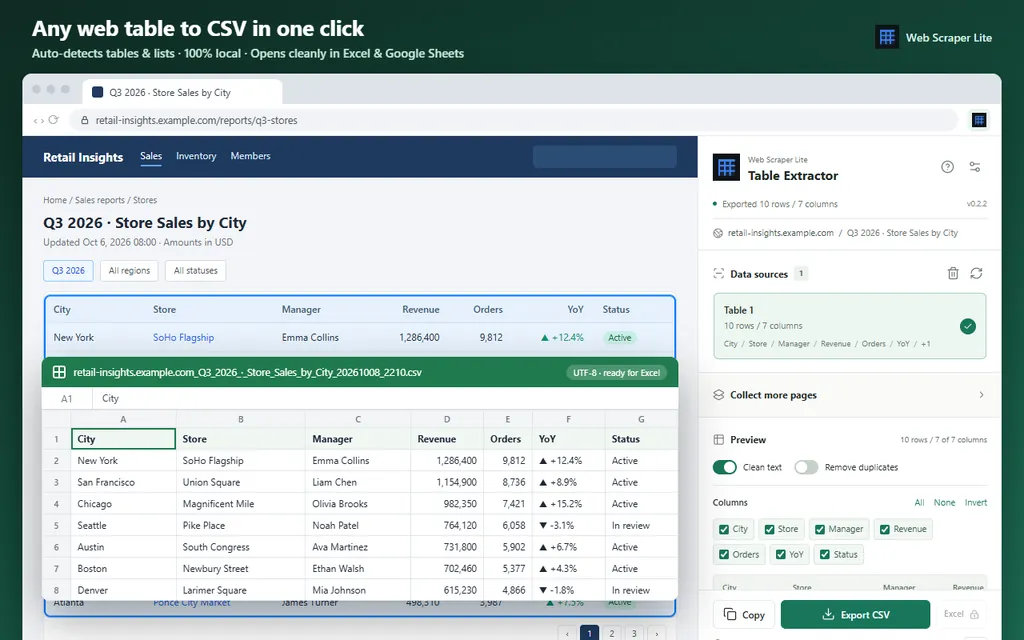
- When exporting from a webpage, use a tool that writes the BOM. Web Scraper Lite saves every CSV as UTF-8 with BOM, so files open correctly in Excel, WPS and Numbers by double-clicking. See how to export a website table to Excel.
- When writing your own scripts, use the encoding name
utf-8-sigin Python, or write\uFEFFat the start of the file in JavaScript.
Free, no account, and nothing leaves your browser.
Add Web Scraper Lite to Chrome – freeFAQ
Why does my CSV look fine in Notepad but garbled in Excel?
Notepad detects UTF-8, but Excel for Windows opens a CSV with your system's legacy code page unless the file starts with a UTF-8 BOM. Import it with Data > From Text/CSV and set File Origin to 65001: Unicode (UTF-8), or save it from Notepad as UTF-8 with BOM.
What does 65001 mean in File Origin?
65001 is the Windows code page number for UTF-8. Choosing it tells Excel to read the file as UTF-8.
Can I fix a file I already saved with garbled characters?
Usually not reliably. Once Excel has saved the misread characters, the original bytes are gone. Go back to the original CSV or export it again.
Does a BOM cause problems in other programs?
Spreadsheet apps handle it fine. Some command-line tools and older scripts treat the BOM as part of the first column name; strip it there if needed.